

- Home
- Services
- IPTV Encoder
IPTV Encoder Guide: Best Encoders for Live Sports Streaming
An IPTV encoder turns a camera or HDMI feed into a compressed stream that travels over an IP network, from a local network to the internet. In this guide, you’ll compare hardware and software encoders, see the best settings for fast sports action and learn how to set one up step by step.
However, if you only want to watch live sports, you don’t need an encoder at all. The provider handles the encoding, and our team matches you with a third-party plan from $12.99 for one month on one device, with free matching and setup help.
What Is an IPTV Encoder?
An IPTV encoder is a hardware device or software app that takes video and audio from a source, compresses it with a codec such as H.264 or H.265, and sends it out as an IP stream. In other words, it’s the bridge between your camera and your viewers.
Camera or HDMI source → IPTV encoder → server, CDN or local network → player app → viewer
Who Needs an IPTV Encoder?
- Sports clubs, schools and churches streaming their own games or events
- Venues, hotels and stadiums sending live channels to many TVs
- Creators and broadcasters sending a feed to YouTube, a CDN or an IPTV server
Who Doesn’t Need One?
If you just want to watch live TV and sports, you don’t need encoding hardware. Instead, you need a player app on your device and an IPTV plan, because the provider has already encoded the channels.
Side-by-Side
IPTV Encoder Software vs. Hardware vs. an IPTV Plan
Software and hardware encoders are for sending your own video out. An IPTV plan is for watching. Here's how the three compare, so you only pay for what you actually need.
| What matters | Software encoder | Hardware encoder | Just watching: IPTV plan |
|---|---|---|---|
| Best for | DIY streamers, one camera, testing | Clubs, schools, churches, venues and regular live events | Fans who want live sports and TV on their screen |
| What you buy | Free apps such as OBS Studio, plus a capable computer and capture card | A dedicated encoder, from entry-level HDMI boxes to broadcast-grade units | No equipment; plans from $12.99 for 1 month per device |
| How it encodes | Your computer's CPU or GPU | A dedicated encoding chip | The provider encodes the channels for you |
| Long live events | Can drop frames if the computer is overloaded | Built for long, continuous runs | Depends on the provider and your internet; test with a trial |
| Inputs | USB or HDMI capture devices | HDMI and/or SDI, sometimes several | None; just a TV device and internet |
| Protocols | RTMP and SRT in popular apps | RTMP, SRT, UDP/multicast or HLS, depending on the model | Not your concern; you log in to a player app |
| Setup skill | Medium: scenes, bitrate, keyframes | Medium: web interface, network, stream destination | Low: our team helps you set up |
| Try first? | Yes, the software is free to test | Rarely | Free 24-hour trial when available, no card |
Encoder features vary by model and software version; check the maker's spec sheet before you buy. StreamVision IPTV doesn't sell encoders and isn't affiliated with any brand named on this page.
What Makes the Best IPTV Encoder for Sports Streaming?
Sports are harder to encode than talk shows, because the picture changes constantly. So before you compare prices, check these six things.
60 fps Frame Rate
Fast passes and replays look smoother at 60 frames per second. Make sure the encoder can take a 60 fps input and send 60 fps out.
Low-Latency Protocol
SRT handles shaky internet well and keeps delay low, while RTMP is the common choice for YouTube and similar platforms. HLS is easy to watch but usually adds more delay. Learn more in our live sports streaming delay guide.
Enough Bitrate
Low bitrate turns grass, crowds and fast motion into blocks. For 1080p60, YouTube recommends about 17 Mbps with H.264.
Matching Inputs
Check whether your cameras use HDMI or SDI, and how many feeds you need. Multi-camera games usually need a switcher or a multi-input encoder.
The Right Codec
H.264 plays almost everywhere. H.265 (HEVC) needs less bandwidth at similar quality, but only when every player in your chain supports it.
Reliability and Backup
For games you can't restart, look for hardware encoding, remote monitoring, dual network options and a backup encoder or connection.
StreamVision IPTV Plans for Sports Fans
Pick a term, set the number of devices, and see your full price before you message us. Matching and setup help are free, and you can start with a free 24-hour trial.
Number of devices:
Each paid device is priced separately. We confirm the provider's simultaneous-viewing rules before you pay.
1 Month
$12.99 per device, per month
$12.99
for 1 device · full 1-month term
- Free provider matching
- Setup help for your device
- Free 24-hour trial first, when available
- Good for testing a season or event
3 Months
About $11.66/month per device
$34.99
for 1 device · full 3-month term
- Free provider matching
- Setup help for your device
- Free 24-hour trial first, when available
- Covers a full sports season stretch
6 Months
About $10.00/month per device
$59.99
for 1 device · full 6-month term
- Free provider matching
- Setup help for your device
- Free 24-hour trial first, when available
- Fewer renewals through the year
12 Months
About $7.50/month per device
$89.99
for 1 device · full 12-month term
- Free provider matching
- Setup help for your device
- Free 24-hour trial first, when available
- Every season, one payment per device
Not ready to pay? Start with a free 24-hour trial, provided by the third-party provider and subject to availability. No payment or card is needed.
Request Free Trial- Prices are in USD for the full term, per device. Your total is the term price × the number of paid devices.
- No separate matching fee, hidden fee, commission or markup.
- Paid activation usually takes 5–10 minutes after payment verification and receipt of your setup details. If your plan can't be activated, your payment is refunded in full.
- Streams are supplied by a third-party provider. StreamVision IPTV doesn't host or operate them, and channel or event availability can vary.
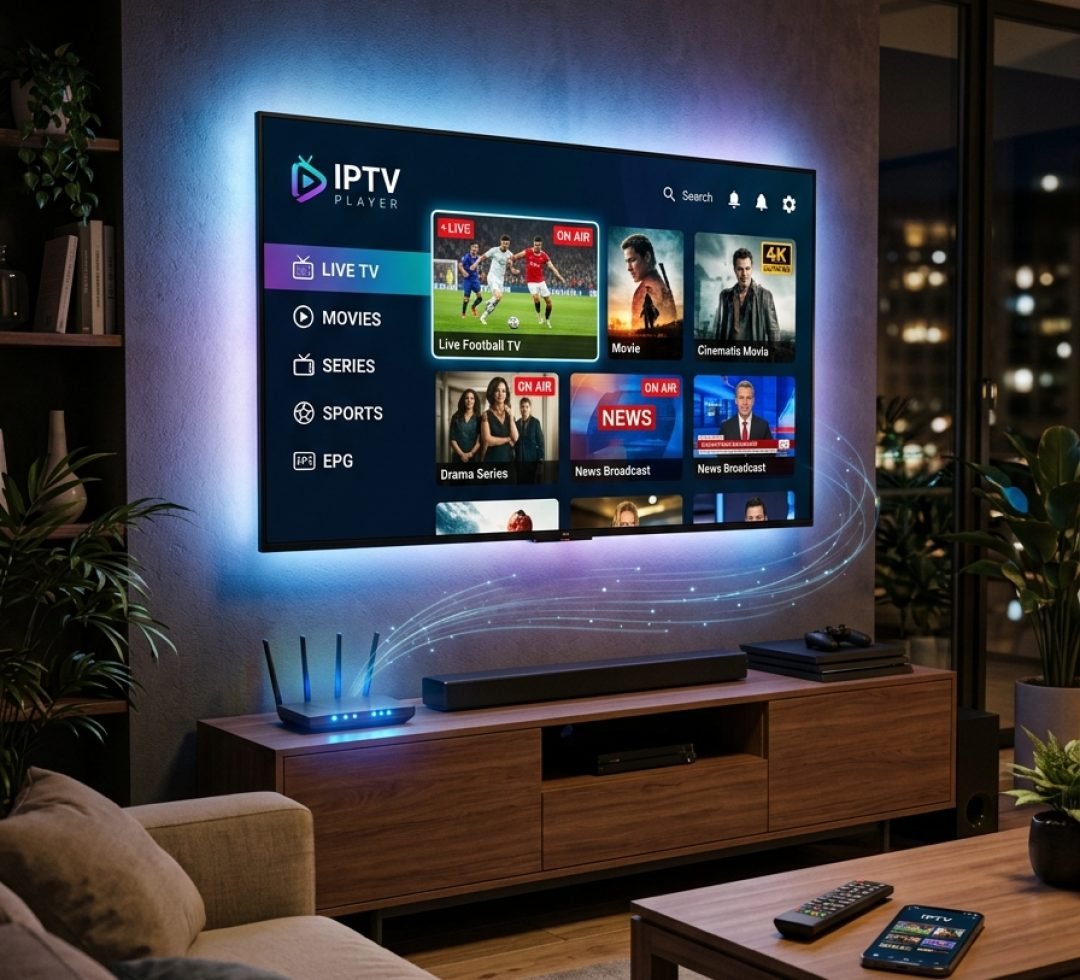
IPTV Encoder Setup: Step by Step
Whether you use hardware or software, the basic IPTV encoder setup follows the same order. First get the signal in, then set the quality, and finally test before game time.
- Connect your source: Plug your camera or switcher into the encoder by HDMI or SDI, and confirm its resolution and frame rate.
- Connect the network: Use a wired Ethernet connection for live games, and check your upload speed first.
- Set the video: Choose the resolution, 60 fps, bitrate, codec and a 2-second keyframe interval.
- Set the audio: Use AAC at 128 kbps stereo, and check the levels so commentary isn't drowned out by crowd noise.
- Add the destination: Enter the stream URL and key, or the SRT address, from your platform or IPTV server.
- Run a test stream: Stream for at least 15–20 minutes and watch for dropped frames, sound sync and delay.
- Monitor during the game: Keep an eye on bitrate, dropped frames, temperature and the network, and keep a backup ready.
Cheat Sheet
Best IPTV Encoder Settings for Live Sports
Fast action needs a high frame rate and enough bitrate. Use these starting points, then run a test stream and adjust to your upload speed and platform.
720p · 60 fps
8 Mbps
Minimum about 3 Mbps
Good for slower upload connections and single-camera streams.
Most common
1080p · 60 fps
17 Mbps
Minimum about 6 Mbps
The usual balance of sharp picture and smooth motion for sports.
4K · 60 fps
50 Mbps
Minimum about 14 Mbps
Only when your cameras, encoder, upload and viewers all support 4K.
- Codec: H.264 for the widest playback support; H.265 (HEVC) saves bandwidth when every player in the chain supports it.
- Keyframe interval: 2 seconds (no more than 4).
- Rate control: constant bitrate (CBR) is the usual choice for live streams.
- Audio: AAC, 128 kbps stereo.
- Upload speed: keep clear headroom above your total bitrate, and use a wired connection for the encoder.
Bitrates are YouTube's recommended H.264 live settings; other platforms and IPTV servers set their own limits.
Which IPTV Encoder Do You Need?
The best IPTV encoder depends on what you’re streaming and who’s watching. Start with your situation, not the spec sheet.
DIY and Single Camera
- Software encoding is the affordable way to start. Free apps such as OBS Studio, a capable computer and an HDMI capture card can stream one camera to YouTube or a server.
Clubs, Schools and Churches
- An entry-level hardware HDMI encoder frees up your computer and runs longer events more steadily. Look for 1080p60, RTMP and SRT, and a simple web interface.
Multi-Camera Sports Production
- Professional hardware encoders with SDI inputs, SRT and remote monitoring suit regional games. Add a switcher, a backup encoder and a second internet line.
Hotels, Stadiums and Venues
- Multi-channel IPTV encoders send several live channels over the building's network, often by UDP multicast. Some units also include RF modulation for older coax TV systems.
Just Watching at Home
- No encoder needed. You only need a supported device, a player app and a plan. Check your device on our IPTV compatible devices page, or get exact steps from the IPTV Setup Guide Generator.
Watching, Not Broadcasting? Start in 3 Steps
If you landed here looking for a way to watch live sports, the process is much simpler than any encoder setup.
Step 1
Tell Us What You Watch
Message us your sports, teams, device, location and number of screens on WhatsApp or email.
Step 2
Test It Free
We match you with a provider plan and arrange a free 24-hour trial when available. No payment or card is needed.
Step 3
Pick Your Plan and Watch
Pay our team the quoted price. Activation usually takes 5–10 minutes after payment is verified, and then we help you set up the player app.
Common IPTV Encoder Problems and Fixes
Most live-stream failures come from a few causes. Fortunately, each one has a quick first check.
Dropped Frames or CPU Overload
Your computer or encoder can’t keep up. Close other apps, turn on hardware encoding (NVENC, Quick Sync or similar), or lower the resolution before you lower the frame rate.
Buffering or Lost Connection
Usually this is the upload link. Use Ethernet, lower the bitrate, check the stream key or SRT address, and confirm your firewall allows the protocol. For viewing-side problems, see our IPTV buffering fix guide.
Blocky Picture or Audio Out of Sync
Blocks during fast play mean the bitrate is too low for the resolution. For sync issues, check the source first, then match the audio sample rate across your devices.
IPTV Encoder FAQs
An IPTV encoder turns live video from a camera or HDMI source into a compressed IP stream. That stream can go to a platform like YouTube, a CDN, an IPTV server or TVs on a local network.
There isn't one best model for everyone. For a single camera, free software like OBS Studio is a good start. For regular games, a hardware encoder with 1080p60, SRT and enough bitrate is safer. For multi-camera productions, add SDI inputs, remote monitoring and a backup.
No. Encoders are for people sending their own video out. To watch, you only need a supported device, a player app and a plan. The provider handles the encoding. See plans.
Neither is better everywhere. Software is cheaper and flexible but depends on your computer. Hardware costs more upfront, but it uses a dedicated chip and runs long events more steadily.
YouTube recommends about 17 Mbps for 1080p at 60 fps with H.264, with a minimum of about 6 Mbps. Your upload speed needs clear headroom above that, so test before game day.
Use H.264 when you need the widest support. H.265 needs less bandwidth at similar quality, but every encoder, server and player in your chain must support it.
RTMP is the common way to send a stream to platforms like YouTube. SRT is built to stay stable over unreliable internet with low delay. HLS is mainly how viewers receive streams, and it usually adds more delay.
Yes. Most encoders support RTMP, and many also support SRT. Enter the stream URL and key from YouTube, then match its recommended bitrate and keyframe settings.
Every step adds delay: encoding, upload, the server and the viewer's player buffer. Read our live sports streaming delay guide for causes and fixes.
Per device, for the full term: $12.99 for 1 month, $34.99 for 3 months, $59.99 for 6 months and $89.99 for 12 months. Matching and setup help are free, and a free 24-hour trial is available when offered. See the free 24-hour IPTV trial.
StreamVision IPTV (also searched as Stream Vision IPTV or StreamVision TV) is a free IPTV matching and setup service for US viewers. We match you with third-party provider plans from $12.99 for one month on one device, arrange a free 24-hour trial when available, and help you set up. We don't sell encoders or offer a StreamVision APK, and we aren't connected to Streamvision Pro or visionstreamtv.live.
Building a Stream or Just Watching One?
If you're broadcasting, use the cheat sheet above and test before game day. If you just want live sports on your TV, skip the encoder: tell us your sports and device, and we'll check the channels for free.