
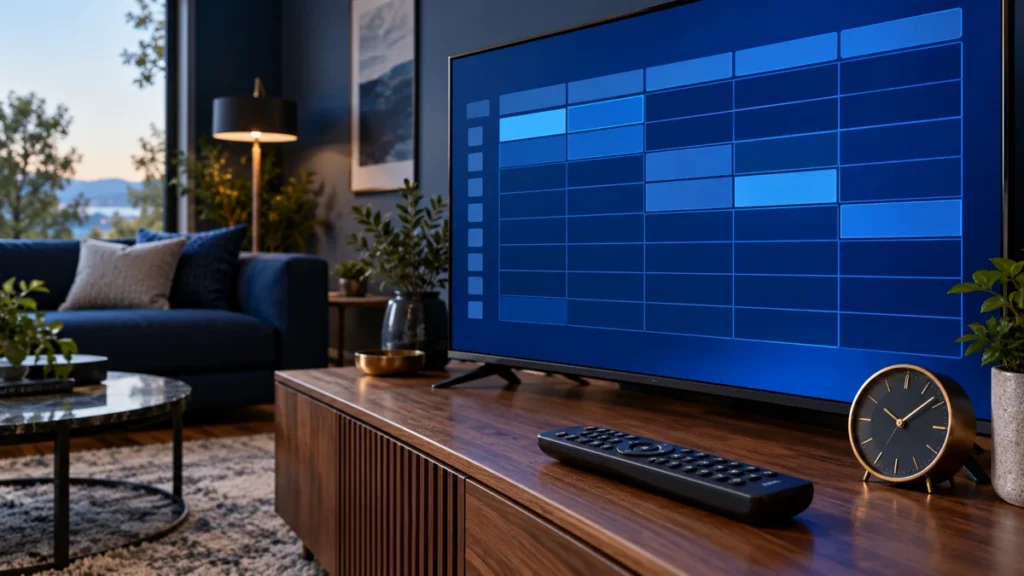
If your IPTV EPG is not working, first check whether the channels themselves still play. A blank TV guide and a stream that will not open are different symptoms, and they need different checks.
EPG means electronic program guide—the schedule showing what is on now and what comes next. Start with the symptom below, then follow the relevant steps.
Identify the Guide Problem First
Check several channels rather than judging the entire guide from one empty row.
| What you see | What to check first |
|---|---|
| Channels play, but every guide row is empty | Guide source, update status and source assignment |
| Only a few channels lack listings | Schedule coverage and channel matching |
| Programs appear at the wrong time | Device time zone and guide offset settings |
| Yesterday’s listings remain | Last successful update and available schedule dates |
| Channels and guide both fail | Internet access, login details and account status |
These are starting points, not confirmed diagnoses.
If the picture freezes while the guide displays normally, follow our IPTV buffering troubleshooting guide instead.
1. Refresh the Guide and Read the Result
Open your player’s guide or EPG settings and look for its update or refresh option. The wording depends on the app and version.
Run one update and let it finish. Check whether the player reports a successful update, a last-update time or an error.
Record the exact message. “Download failed” gives support more useful information than “the guide is broken.”
If the update completes but listings remain empty, continue with the source and channel checks below. Repeatedly pressing refresh will not add information that the source does not contain.
2. Confirm the Correct Guide Source
Some setups obtain guide information through the provider login. Others use a separate guide address or file.
For example, Kodi’s IPTV Simple Client supports M3U playlists for channels and XMLTV data for the guide. Your player may use a different setup, so follow its own documentation.
Ask the team supplying your access to confirm:
- Whether your plan includes guide data for the affected channels.
- Whether the app needs a separate EPG source.
- Whether the source is assigned to the correct playlist.
- Whether any guide address or access details have changed.
Do not replace a working playlist with an unrelated guide link from a forum. Channel access and schedule data need to match the intended setup.
Keep private playlist URLs, passwords and access tokens out of public comments and screenshots.
3. Check Missing Channels Individually
If most listings work, start with the affected channels rather than resetting the whole app.
Record the channel name, regional version and whether it plays. Ask whether the source includes a schedule for that exact feed.
In playlist-based setups, the player needs a way to associate each channel with its guide entries. A mismatch can leave a row empty or attach the wrong schedule.
Where the player supports manual guide assignment, follow its documentation or ask support to confirm the correct match. Changing a display name alone may not fix the underlying association.
4. Correct Wrong Guide Times Carefully
Check your device’s date, time and time zone first. Then review any guide time-shift or offset setting in the player.
If every listing is displaced by the same amount, note the difference before changing anything. Adjust one setting at a time and check the result.
For example, if several programs appear one hour late, investigate the device time zone and existing guide offset before adding another correction.
If only one channel has incorrect times, check its regional feed and source schedule. A global offset could make the other channels wrong.
Changing guide times affects the schedule display. It does not remove delay from the live video. Our live sports streaming delay guide explains that separate issue.
5. Check How Much Schedule Data Is Available
Move the guide back to the current date and time. Then compare today’s listings with tomorrow’s.
If today works but later days are blank, ask how far ahead the source supplies schedules. Increasing the player’s display range cannot create programs absent from the source.
Also check whether the guide update actually completed. Old listings can remain visible even when a newer download has failed.
Before clearing guide data, confirm the app’s instructions and retain the information needed to restore your setup. Avoid clearing all app storage as a first troubleshooting step.
What to Send Support If the Guide Still Fails
A short, specific report helps narrow the problem.
| Detail | Example |
|---|---|
| Device and player | Exact device model, app name and version |
| Scope | All channels or three named channels |
| Playback | Channels play normally, or playback also fails |
| Update result | Last successful update or exact error |
| Timing | Current time zone and observed schedule difference |
| Recent change | New app version, playlist or device |
Include a screenshot with credentials and private URLs hidden.
If you arranged your plan through StreamVision, contact our team with these details. We can help check the setup and coordinate provider-side questions. We cannot promise to create missing schedule data or correct every source error ourselves.
Check the Guide During an IPTV Trial
Before choosing a paid plan, test the guide on the channels you actually watch. Check current listings, program times and navigation on your intended device.
StreamVision can arrange a provider-issued free 24-hour trial, subject to availability. No payment or card is required for that trial.
Use our IPTV trial checklist to record results. Matching and setup assistance are free; third-party provider plans are paid separately through our team.
See our IPTV pricing guide for full-term prices and device totals.
Common Questions
Why do channels play when the TV guide is empty?
The video and schedule can come through separate sources or processes. Successful playback does not establish that guide data downloaded or matched correctly.
Will reinstalling the player fix missing listings?
Not necessarily. Reinstallation cannot supply schedules missing from the source. Check updates, source details and channel matching first.
Does a working EPG mean catch-up TV is included?
No. A schedule entry does not establish that a replay is available. Confirm catch-up support and its limits with the selected provider and player.